 Michael Johnson

“Show me a brand’s IG profile, find its latest posts, and suggest which topics are worth exploring further.” Now you can ask an AI assistant connected to jsonscraper to do this. We’ve released an MCP server for IG and TikTok: the assistant retrieves data through our API, displays it in cards, and helps you move from browsing to analysis.
This is useful when you need to research a creator before a collaboration, compare competitor profiles, examine questions under a post, or gather material for a content plan. Describe the task in everyday language, and the assistant selects the appropriate tools. You don’t need to write code to make your first request.
On October 26, 2026, we launched a unified MCP server and 40 ready-made workflows—20 for each platform. On October 27, we updated the interactive cards and added filters and analytics for retrieved results. The dates and details are listed in our release log. The server address is https://mcp.jsonscraper.com; it’s designed for ChatGPT, Claude, Codex, and compatible MCP clients.
Quick start: from license to first request
You’ll need a license for the API you want to use and an AI assistant that supports MCP. You don’t need a separate OpenAI key to connect to jsonscraper.
- Choose a platform. Purchase an IG Scraper API or TikTok Scraper API license. If you already have a license, use it: you don’t need to buy another one for MCP.
- Copy your key. Sign in to the account you used to purchase the product, open Evelode → Licenses, and find the key for the API you need.
- Add the MCP server. In your assistant’s connections section, enter
https://mcp.jsonscraper.comand select OAuth. Separate instructions for ChatGPT, Claude, and Codex are below. - Connect your license. On the authorization page, enter the key in the card for your platform, click Check key, wait for Connected, and confirm with Connect. You’ll need the corresponding key for each platform.
- Test your first request. Enable the connected tool in a chat and ask it to show one public profile you know. Start with a small sample.

How to check the result
For example: “Show the public @instagram profile on IG using jsonscraper MCP.” The response should be based on a tool call. In clients that support MCP Apps, the data may appear in an interactive card; in other compatible clients, it may appear as text or structured data.
If your key isn’t accepted, check the platform, license status, and available quota. If the tool doesn’t appear, complete OAuth and enable the connection in the current chat. Enter your license key only on the connection page; don’t send it in a chat with the assistant.
How MCP changes everyday work
MCP—Model Context Protocol—is a way to connect external tools to an AI assistant. After authorization, the assistant can call the jsonscraper methods you’ve permitted, retrieve IG or TikTok data, and use it in its response. Instead of looking up an API endpoint, choosing parameters, and parsing JSON manually, you can describe the task in everyday language—for example, request a brief overview of a public profile or compare data already retrieved for two accounts.
The unified server brings together 94 IG API methods and 54 TikTok API methods. A license for one product unlocks tools for that platform; two licenses provide access to both. Plans and quotas remain separate: IG requests use the IG quota, and TikTok requests use the TikTok quota. MCP uses your jsonscraper keys for the selected APIs and handles authorization on its OAuth page.
Cards that make results easier to read
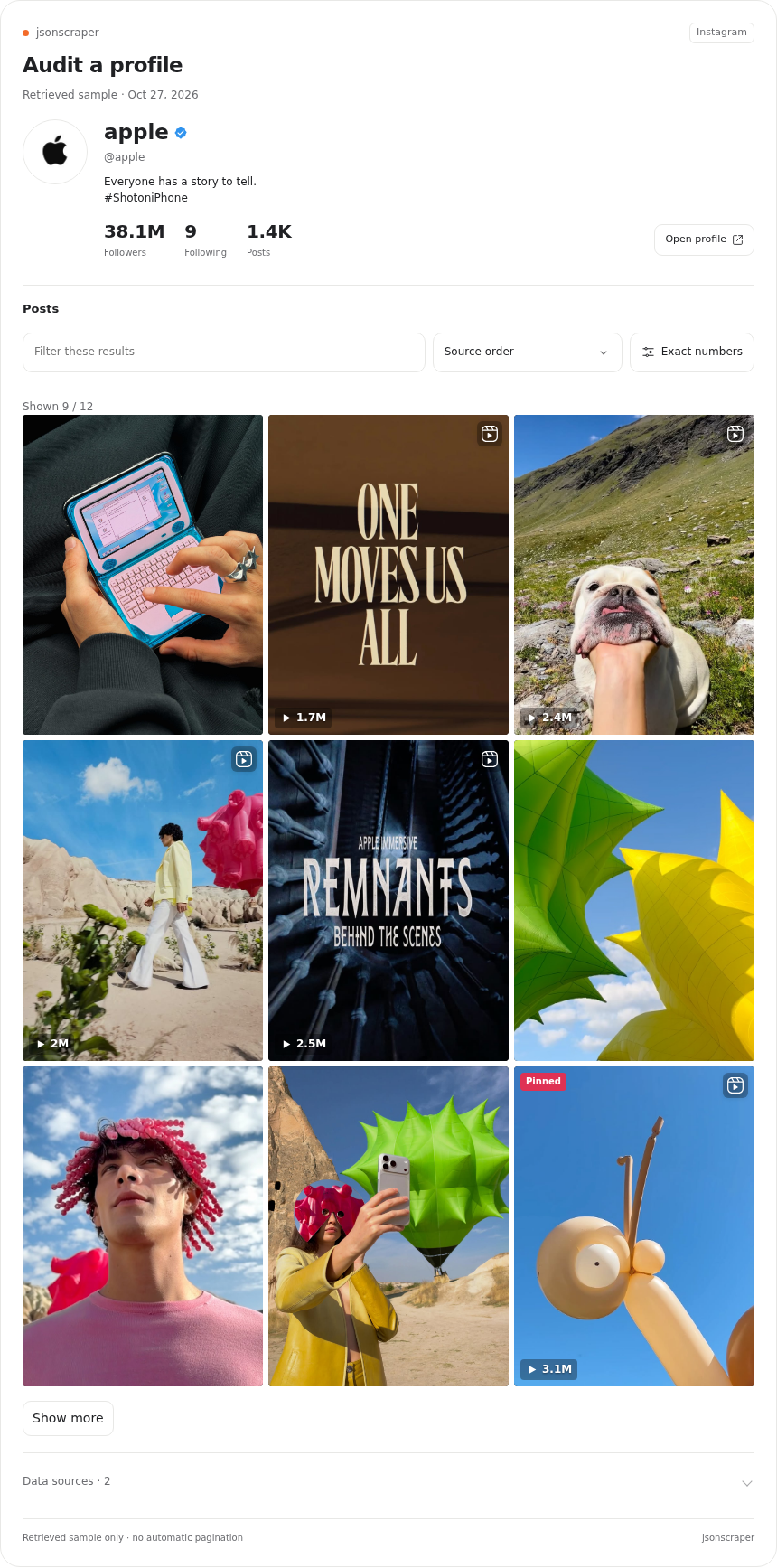
You can explore the data in more than text or JSON. Clients compatible with MCP Apps support interactive cards for profiles, posts and videos, followers, comparisons, and workflow results. The profile card lets you review the main information retrieved; the post card lets you open a post and view its comments if they’re included in the sample. The follower view works with the latest retrieved page and shows up to 50 accounts, while the video card shows up to 12 returned clips.
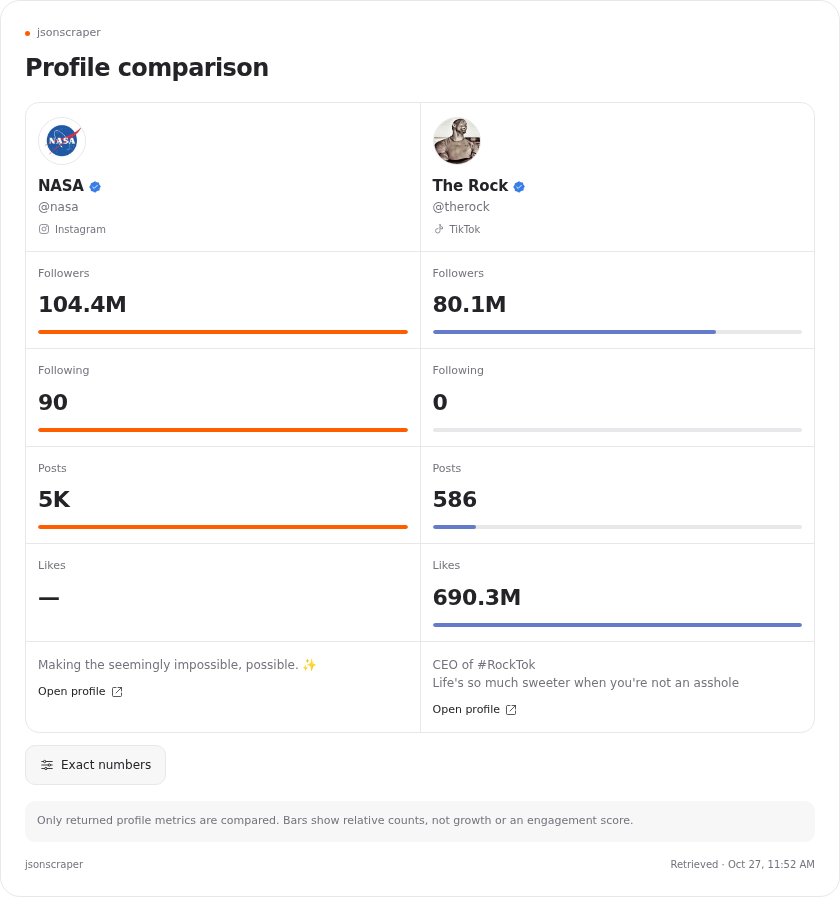
The comparison card lets you put previously retrieved IG and TikTok profiles side by side, while workflow cards show the material behind an analysis. Start by comparing the profile metrics available. To explore the content, request one page of posts next; the assistant will then have material for a more detailed analysis.
Sorting and filters apply locally to posts already retrieved: you can select a format, set a view threshold or date range, and then explore the top results in your sample. These actions don’t request additional API pages. Interactive features depend on whether the client supports MCP Apps; without that support, the assistant receives structured data and can work with it in the usual way. See the interactive card demo and the catalog of 40 workflows.
Where to get a connection key
If you already use jsonscraper, you can use an active key for the API you need. If you’re new to the service, start by getting access:
- Open the IG API or TikTok API page, depending on which platform you want to use.
- Review the current plans and proceed to purchase access. Licenses are sold through Evelode: separately for the IG API and the TikTok API.
- After purchase, sign in to your Evelode account and open your licenses. Find the product you need and copy its key.
You’ll need two licenses to use both platforms. Each has its own plan and request limit, and both can be connected to the same MCP server.
When you add the server in your assistant, the jsonscraper authorization page will open. OAuth is the process that links your license to this connection. Paste the copied key into the card for the relevant product: IG in the IG field, TikTok in the TikTok field. Click Check key, wait for the Connected status, and select Connect. To add a second platform later, repeat authorization with that product’s key.
You don’t need an IG or TikTok password, a Meta/TikTok developer app, or an OpenAI key for this connection. If the client shows extra Client ID and Client Secret fields, leave them blank: client registration is automatic. Enter your license key on the jsonscraper authorization page; don’t send it in chat or paste it into a regular assistant prompt.
Recommended route: connect in ChatGPT
- In ChatGPT, open Plugins → Add → Add custom MCP server.
- Enter the name jsonscraper, the address
https://mcp.jsonscraper.com, and OAuth as the authorization method. - Create the connection as a plugin, open its card, and select Install.
- In the jsonscraper authorization window, add the key to the card for the product you need, verify it, and confirm the connection.
- Return to the chat and select jsonscraper using
@, then enter your first request with a clear limit on its scope.
Menu labels and connection availability may vary depending on the client and workspace. We maintain current steps and connection options on the MCP page; the OpenAI documentation also describes general MCP connection principles.
For the ChatGPT desktop app, we’ve also prepared a ready-to-install ZIP plugin and setup instructions. Choose this option if you want to import the package. The ZIP is for the desktop app only; the recommended route above explains how to connect a remote server by URL.
Claude and Codex CLI
In Claude, open Customize → Connectors → + Add → Add custom connector. Enter the name jsonscraper and the same address, https://mcp.jsonscraper.com, select Add or Connect, and complete OAuth on the jsonscraper page. In a chat, enable the connector from the tools menu—usually by selecting the + button and then Connectors. Menu labels may vary depending on available features and workspace settings.
To add the server and authorize it with Codex CLI, run:
codex mcp add jsonscraper --url https://mcp.jsonscraper.com
codex mcp login jsonscraper
The OAuth flow will open next. After completing it, Codex can use the tools permitted by your license.
First requests: start small
Ready-made workflows save time when setting up a sequence of steps. The catalog includes tasks for reviewing profiles, finding and studying posts, researching competitors, analyzing comments and creators, and generating content ideas. Here are some prompts you can adapt. Replace profile names and the post link with your own.
Check my connected IG and TikTok licenses. Show the status, available quota, and remaining balance for each. Don’t request social media data.
A license check reports connection and quota status without using social API quota. If only one product is connected, check that license.
Review the public IG profile @profile_name: basic details and one page of posts. Show the result in a card. Make no more than two API requests and state the sample size.
You can specify a TikTok profile instead of IG. This is a good way to view a profile and a limited set of posts, then decide what to ask next.
Compare the public IG profiles @profile_1 and @profile_2. Use one profile request per account and show a comparison card. Compare the available metrics; mark missing fields as unknown.
You can compare two to four previously retrieved profiles in one card, including profiles from different platforms. To compare IG and TikTok, connect both licenses.
Analyze the comments on this IG post [paste link]: retrieve one page of comments and make no more than two API requests, including the request needed to identify the post. Group recurring questions and topics, using examples only from the comments retrieved.
This analysis can reveal product questions, discussion topics, and phrasing to consider for your next post. The summary will cover the comments retrieved; you can expand the sample with a separate request.
Based on the post sample already retrieved, suggest three content ideas to test. For each idea, identify which posts in the sample inspired it; don’t make any new API requests.
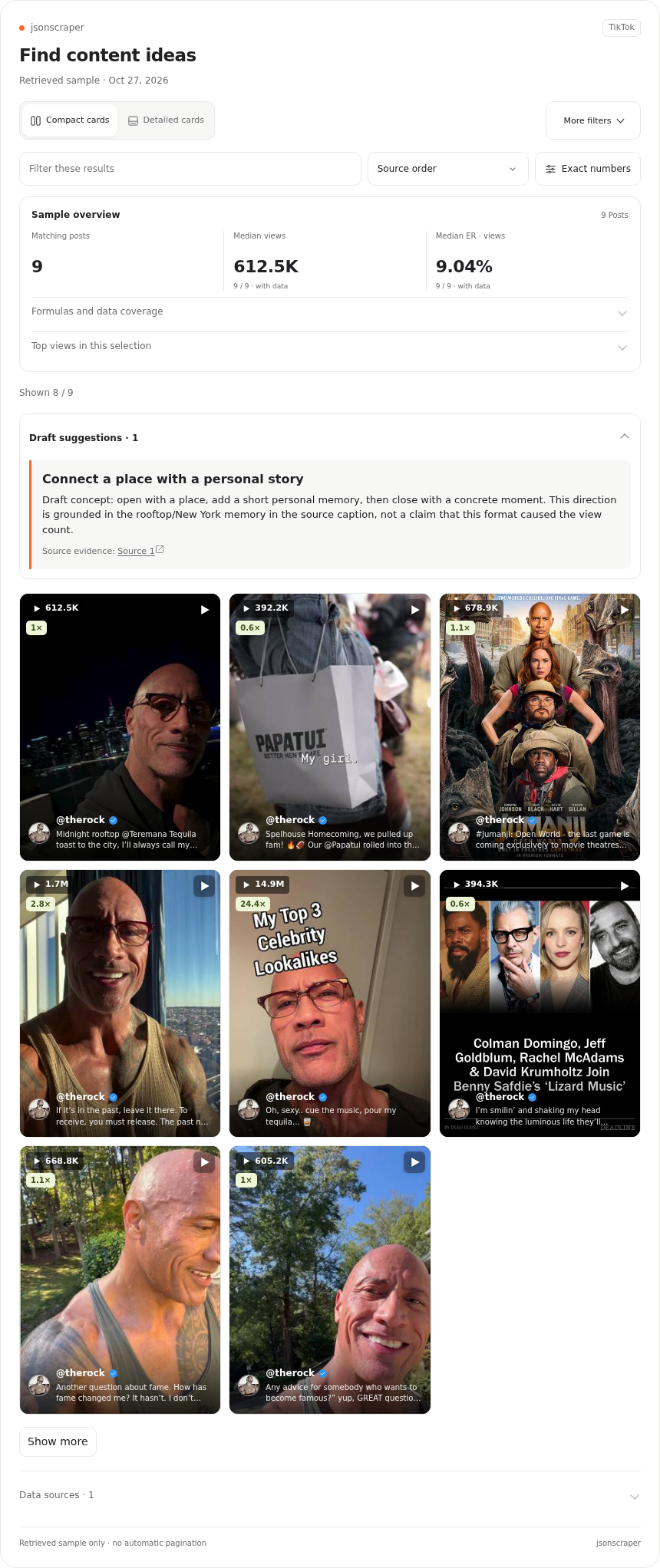
Workflow cards can connect ideas to the specific source posts. The assistant’s suggestions are hypotheses for editorial testing: you can see which posts provided the starting point alongside each idea. The same approach works for competitor research: first define a limited sample of profiles or posts, then ask for conclusions that identify the supporting data.
Quotas and metrics: what to consider when interpreting results
A standard data-method call makes one request to the API for the relevant product and counts against its license. Each subsequent pagination step is another request, so for a larger task, set a budget in advance—such as a number of pages or maximum requests—and allow the assistant to stop once it’s reached. Checking a license doesn’t use social data quota. Cards, filters, and sorting reuse data already retrieved and don’t make new requests.
Every summary describes the sample actually retrieved. One page of posts isn’t a complete content list, and the latest page of followers retrieved doesn’t represent the entire audience. To cover more data, use a limited, step-by-step collection process, and ask the assistant to state the number and type of records used in its conclusions.
Metrics also depend on having the necessary source fields. ER by views can be calculated when a post has likes, comments, reposts, and a positive number of views. Relative view comparisons are possible when at least five posts by the same creator and in the same format are available; the group median serves as a reference point. If a value is missing, it remains unknown rather than becoming zero. That’s why it’s useful to ask the assistant to explain which fields and posts it used in its calculation.
Frequently asked questions
Do I need an OpenAI key or a social media password?
No. For jsonscraper MCP, use the jsonscraper license key for the product you need, and enter it on the jsonscraper OAuth page. IG and TikTok passwords aren’t required.
Can I connect only IG or only TikTok?
Yes. One license unlocks tools for its platform; two licenses unlock both. Each product has its own plan and quota.
Do filters and license checks use quota?
Checking a license doesn’t use social API quota. Filters, sorting, and cards work with data already retrieved; standard data-method calls and new pages use the quota for the relevant product.
Can I install the ZIP in a browser or on a phone?
The ZIP installs in the ChatGPT desktop app. For the web version, follow the instructions for connecting a remote server; plugin availability and features in the mobile app depend on the client’s capabilities and workspace settings.
Connect and ask your first question
Open the card demo, choose a workflow that interests you, and see what the result looks like. Then go to connect jsonscraper MCP: add your key, choose an assistant, and send your first request about a profile you work with. You can copy ready-made prompts from the workflow catalog.
If you later want to integrate the same access into your own app or workflow, SDKs are available for Python, Node.js, PHP, Go, Java, and C#/.NET. They’re listed on the developer tools page. To get started, connect MCP in the assistant you already use; a programmatic integration can come later as your needs grow.